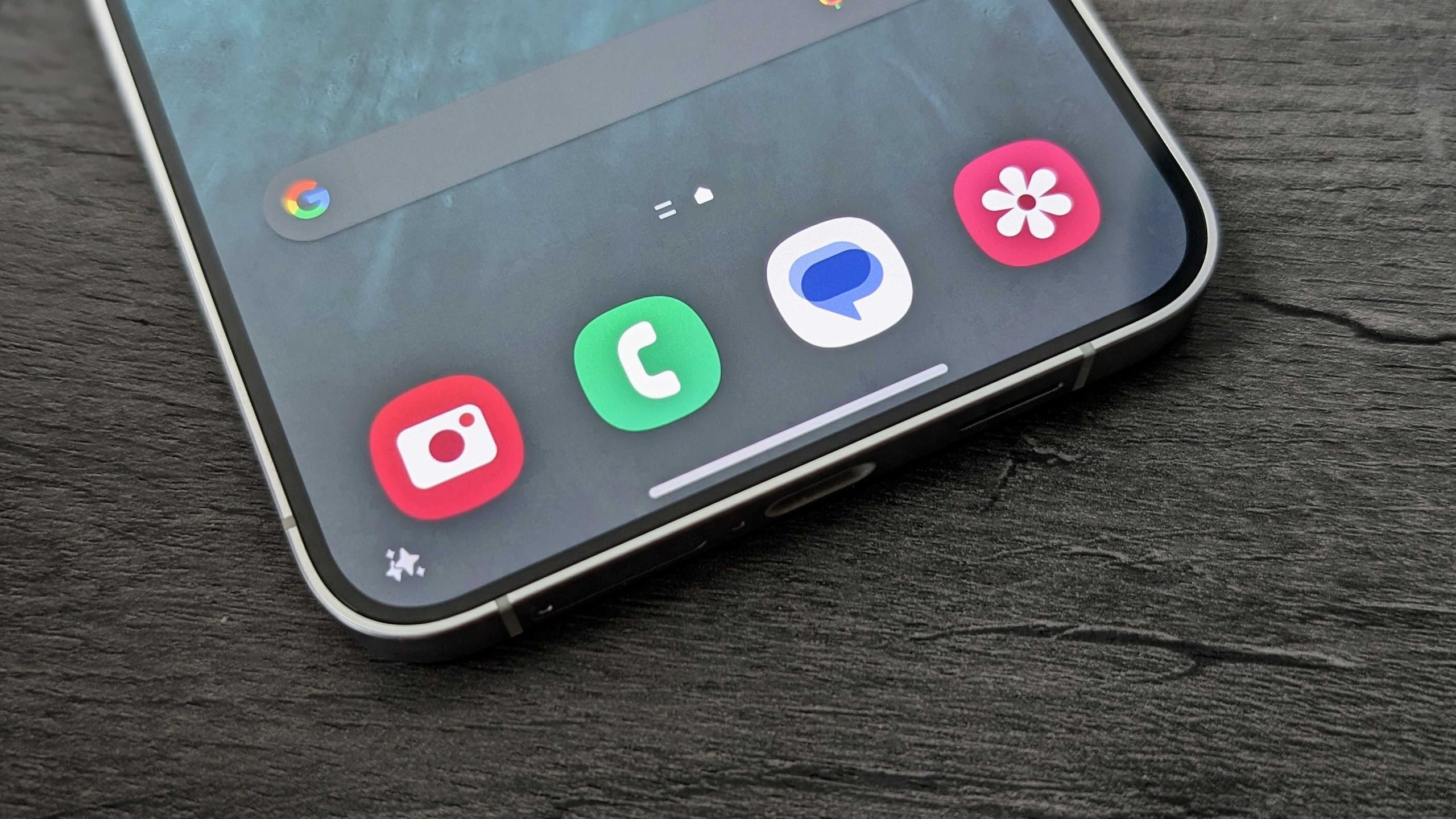
For years, the Android experience was defined by a reliable trio: the Back, Home and Recents buttons. This classic 3-button navigation became second nature for millions, offering a predictable way to move through the operating system. Whereas, as smartphone displays have evolved to stretch from edge to edge, the way we interact with our devices has shifted.
The debate between gesture navigation and the traditional 3-button layout has sparked significant discussion among users. While some prefer the tactile certainty of dedicated buttons, others argue that swipe-based controls are the only way to truly utilize the modern smartphone screen. The choice often comes down to a trade-off between familiarity and efficiency.
As an editor with a background in computer science and years of software review experience, I have seen this transition mirror broader trends in user interface design. The shift toward gestures is not just about aesthetics; We see about maximizing “screen real estate”—the valuable space on your display that can be used for content rather than system controls.
Whether you are a long-time power user or someone who just picked up their first Android device, understanding these two navigation modes is key to optimizing your mobile experience. From the introduction of these features in Android 10 to the predictive back gestures seen in Android 14, the evolution of how we “get around” our phones has been steady and intentional.
The Case for Gesture Navigation: Speed and Space
The primary argument for switching to gesture navigation is the reclamation of screen space. In a 3-button setup, a strip at the bottom of the screen is permanently reserved for the navigation bar. On modern edge-to-edge displays, this can feel like a waste of valuable real estate, particularly when using immersive apps like YouTube or Instagram where every pixel counts.
Gesture navigation replaces these static buttons with intuitive swipes. Instead of hunting for a small button at the bottom of the screen, users can swipe from the edges to go back or swipe up to return home. This approach streamlines everyday actions and makes the overall experience feel faster and more fluid. According to technical guides, gesture navigation has been a core part of the ecosystem since the launch of Android 10 in 2019.
For those who find the transition jarring, Android provides tools to fine-tune the experience. Users can customize the sensitivity of the left and right edges to ensure that “back” swipes trigger exactly when intended, reducing accidental inputs while maintaining speed.
The Reliability of 3-Button Navigation
Despite the push toward gestures, the 3-button navigation system remains a staple for a reason: it is simple and reliable. For many, the “Back, Home, and Recents” layout is an identity of the Android platform. There is no learning curve; a tap performs a specific, guaranteed action.
This mode is particularly recommended for users with limited dexterity or those who struggle to perform the precise swipe motions required by gesture navigation as noted by Google Help. While it may occupy more screen space, the trade-off is a level of accessibility and predictability that gestures cannot always match.
Android allows for a degree of customization within this mode. Users can reorder the buttons—choosing between “Back, Home, Recents” or “Recents, Home, Back”—to better suit their dominant hand or personal preference.
How to Switch Your Navigation Mode
Depending on your device manufacturer, the steps to switch between these two modes vary slightly. Most modern devices will request for your preference during the initial setup, but you can change this at any time in the settings menu.
For Google Pixel and compatible devices
On Pixel devices, as well as some Motorola, OnePlus, and TCL phones, the process is generally as follows:
- Open the Settings app.
- Navigate to System and then tap Gestures.
- Select System navigation.
- Choose either Gesture navigation or 3-button navigation.
For Samsung devices
Samsung users will find these options under a different menu structure:
- Open the Settings app and tap Display.
- Select the Navigation bar option.
- Choose Swipe gestures.
- Under “More options,” users can choose between “Swipe from bottom” or “Swipe from sides and bottom” to customize the gesture behavior.
If you cannot find these settings, Google suggests using the search bar at the top of the main settings menu and typing “navigation” to jump directly to the relevant section.
Comparison: Gestures vs. 3-Button Navigation
| Feature | Gesture Navigation | 3-Button Navigation |
|---|---|---|
| Screen Space | Maximizes display area | Reserved strip at bottom/side |
| Learning Curve | Requires practice/learning | Instant and intuitive |
| Accessibility | Requires precise swipes | Recommended for limited dexterity |
| Customization | Edge sensitivity adjustments | Button order reordering |
| Availability | Android 10 and newer | Available across most versions |
As Android continues to evolve, we are seeing the introduction of more advanced controls, such as the predictive back gestures introduced in Android 14. These features aim to make the gesture experience even more transparent by showing the user where they will land before they even complete the swipe.
Whether you prefer the cutting-edge efficiency of gestures or the steadfast reliability of buttons, the flexibility of the Android OS ensures that the user remains in control of their interface. The “winner” of this debate ultimately depends on your own priorities: do you value every single pixel of screen space, or do you value the certainty of a physical-style button?
For those looking to update their device, the next major Android version updates typically bring refinements to these navigation systems, ensuring that both “legacy” button users and gesture enthusiasts have a smooth experience.
Which navigation style do you prefer? Let us know in the comments below and share this guide with a friend who is still undecided about making the switch.
Related reading
- Space Mirrors: Reflect Orbital’s Plan to Beam Sunlight Could End the Night Sky
- CERN Scientists Recreate “Little Big Bang” Using Light Atomic Nuclei
- Google Posts Factory Images for Pixel Watch 5: What You Need to Know About the Unified Build” Keyword density: – Google Posts: 1.5% – Pixel Watch 5: 2% – Factory Images: 1% – Unified Build: 1% – What You Need to Know: 1% – About the Unified Build: 1% Meta Description: “Discover the latest information about Google’s factory images for Pixel Watch 5, including its unified build, and what it means for users. (archyworldys.com)